If you cannot remember your website-administration password, request a password-reset link from the Admin Login page.
This process resets the password for your website-administration account. It does not change your Online Candidate Client Portal password.
Request a password-reset link
-
Open your website administration login page.
-
Select Forgot your password?
-
Enter the email address associated with your website-administration account.
-
Select Send Reset Link.
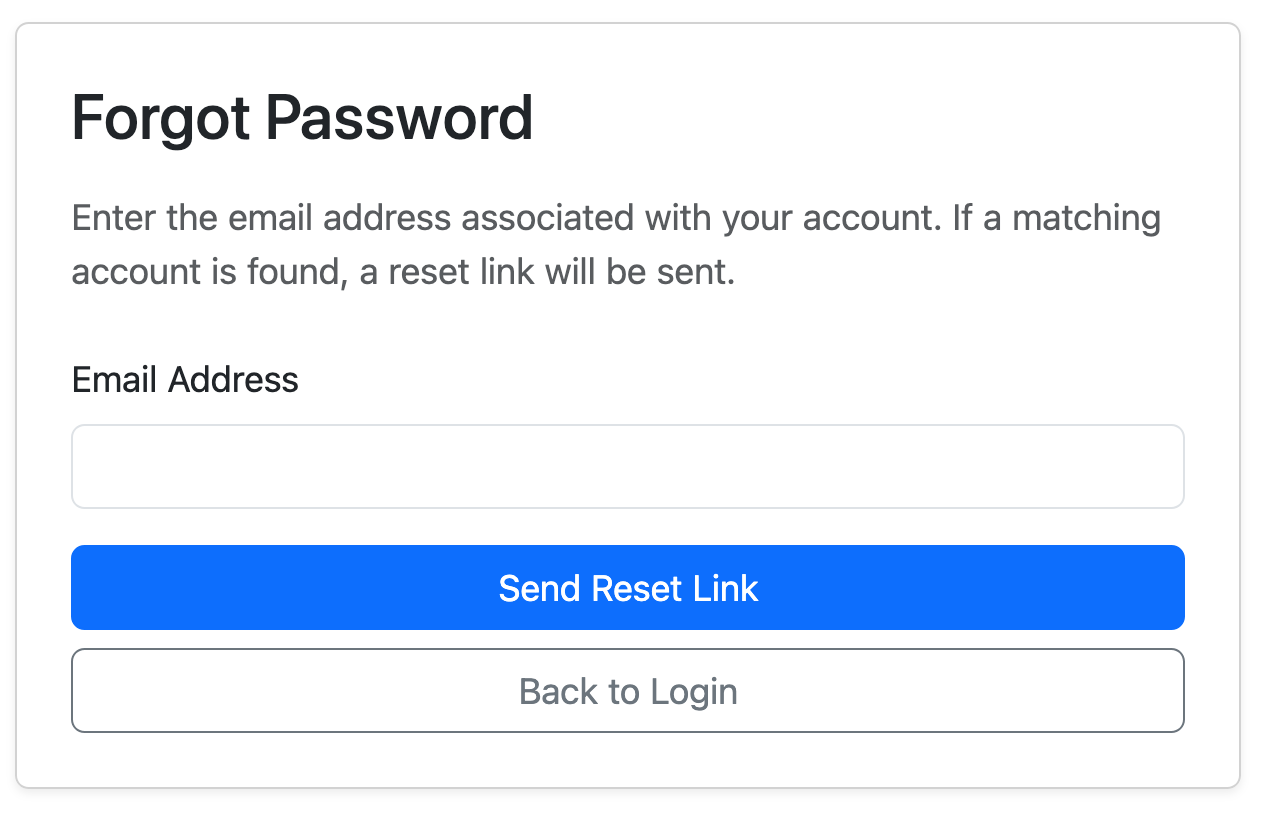
If the email address matches an administrator account, a password-reset link will be sent to that address.
Create a new password
-
Open the password-reset message in your email.
-
Select the reset link in the message.
-
Enter your new password and confirm it when prompted.
-
Return to the Admin Login page and sign in with your username and new password.
Use a unique password that you do not use for another website or service.
Troubleshooting
I did not receive the password-reset email
- Check your spam, junk, or promotions folder.
- Allow a few minutes for the message to arrive.
- Make sure you entered the email address associated with your administrator account.
- Search your inbox for messages from Online Candidate.
For security, the reset page does not confirm whether an administrator account exists for the email address entered.
If the message still does not arrive, contact Online Candidate support.
I do not know which email address is associated with my account
Check the confirmation email received when the administrator account was created. The administrator email was also displayed on the Your Admin Account Is Ready confirmation page.
If you cannot locate that information, contact Online Candidate support.
The reset link does not work
Return to the Admin Login page and request a new password-reset link. Make sure you open the link from the most recent reset email.
I know my password but not my username
Resetting your password will not change or recover your username. Check your administrator-account confirmation email or contact Online Candidate support.
I need to reset my Client Portal password
Use the password-recovery option on the Online Candidate Client Portal. The Client Portal and website administration area use separate accounts.
Security recommendations
- Do not send your password by email or support ticket.
- Do not share an administrator account with another user.
- Create a separate account for each person who needs website access.
- If you believe someone else knows your password, reset it immediately.
Additional administrator accounts can be managed from Site Settings → User Management after you log in.
Related articles
- Log In to Your Website Administration
- Create Your Website Administrator Account
- Add or Manage Website Administrators